
Introduction: Choosing the Right Storage in the Age of Speed
For decades, Hard Disk Drives (HDDs) were the standard for data storage—reliable, capacious, and cost-effective. But over the past few years, Solid-State Drives (SSDs) have rapidly gained ground, offering unparalleled speed and efficiency.
As users demand faster boot times, smoother gaming experiences, and better multitasking performance, understanding the difference between SSDs and HDDs is essential. This article explores the fundamental differences, advantages, disadvantages, and use cases of both technologies to help you make informed choices for your PC, laptop, gaming rig, or server.
1. What Is a Hard Disk Drive (HDD)?
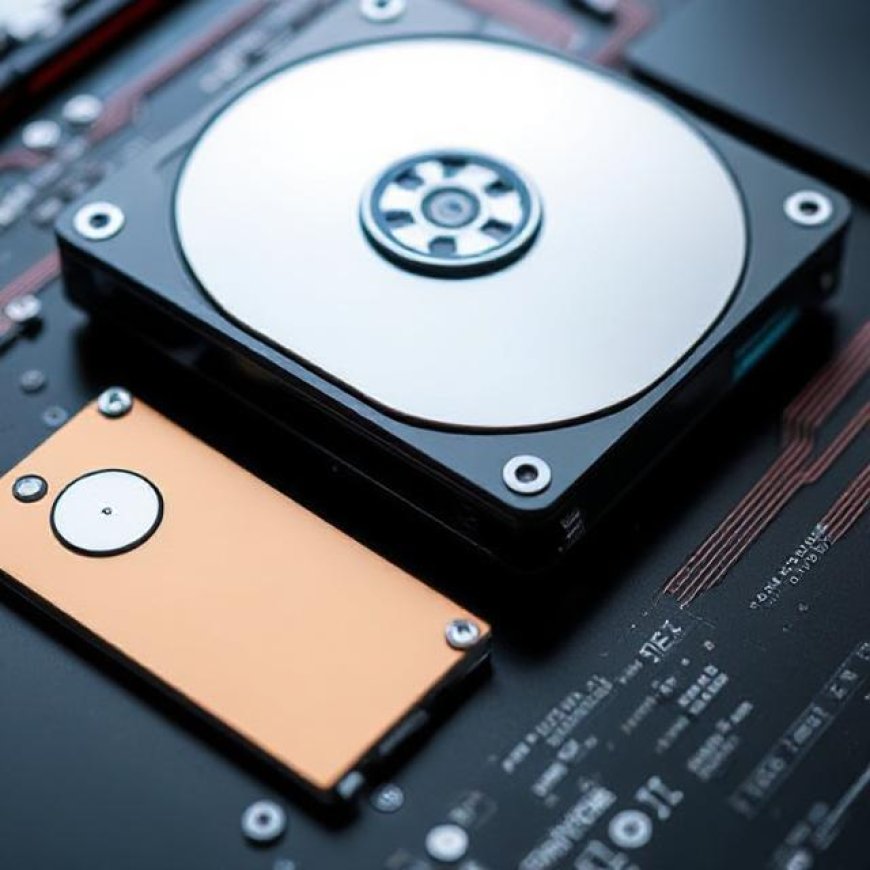
An HDD is a mechanical storage device that uses spinning magnetic disks (called platters) to store and retrieve data. A moving read/write head floats above the platters to access information.
Key components of an HDD:
- Platters: Store data magnetically.
- Spindle: Rotates the platters.
- Actuator Arm: Moves the read/write head to the right location.
This mechanical nature results in slower speeds and higher power consumption, but also higher storage capacities at lower cost.
2. What Is a Solid-State Drive (SSD)?
An SSD is a non-mechanical storage device that stores data on interconnected flash memory chips, similar to a USB flash drive.
Key characteristics of SSDs:
- No moving parts
- Faster data access and write speeds
- More shock resistant
- Lower power usage
SSD technology has evolved rapidly, moving from early SATA-based drives to NVMe SSDs using PCIe interfaces, delivering lightning-fast speeds for modern computing needs.
3. Speed and Performance Comparison
SSDs are significantly faster than HDDs in all measurable aspects:
- Boot Times: SSDs boot operating systems in seconds.
- Data Access: Instant file loading, application launching, and data transfers.
- Sequential Read/Write Speeds: Modern SSDs can exceed 3000 MB/s using NVMe, while HDDs typically top out around 150 MB/s.
- Latency: SSDs offer ultra-low latency compared to mechanical lag in HDDs.
In real-world usage, this means snappier performance, especially in gaming, video editing, and multitasking environments.
4. Capacity and Pricing
HDDs remain the king when it comes to raw storage capacity at a lower price point:
- HDDs offer storage up to 20TB and beyond.
- SSDs are typically more expensive per gigabyte, especially at higher capacities.
Use case considerations:
- SSD: Best for system drives, gaming, and frequently accessed data.
- HDD: Ideal for mass storage, backups, and archiving.
If you're budget-conscious but need lots of space, HDDs are still relevant. However, prices of SSDs continue to fall, making them more accessible each year.
5. Durability and Reliability
SSDs are generally more durable than HDDs:
- No moving parts means better resistance to drops and shocks.
- HDDs are more vulnerable to physical damage due to spinning platters.
However, SSDs have a limited write lifespan (measured in TBW—Terabytes Written), which is constantly improving with wear-leveling algorithms and better NAND flash technology.
Modern SSDs are very reliable for consumer and professional use—typically lasting many years under normal workloads.
6. Noise, Heat, and Power Efficiency
SSDs:
- Operate silently.
- Produce less heat.
- Consume less power—beneficial for laptops and mobile devices.
HDDs:
- Generate audible noise during operation.
- Produce more heat due to moving components.
- Consume more power, especially during startup and intensive read/write operations.
These differences make SSDs the clear winner for quiet, cool, and energy-efficient setups.
7. SSD Form Factors and Interfaces
SSDs come in various form factors and connection interfaces:
- 2.5-inch SATA SSD: Compatible with traditional HDD bays.
- M.2 SATA SSD: Compact and efficient, but still uses the SATA protocol.
- M.2 NVMe SSD: Offers the highest speeds via PCIe lanes.
- PCIe AIC SSDs: Inserted into PCIe slots for high-performance desktops and servers.
Understanding the interface is crucial for maximizing speed and compatibility.

8. Hybrid Drives and SSHDs
Some manufacturers offer SSHDs (Solid-State Hybrid Drives)—a blend of HDD and SSD technologies.
These combine a small SSD cache (usually 8GB–32GB) with a large-capacity HDD. Frequently accessed files are stored on the SSD portion for speed, while less-used data resides on the HDD.
While SSHDs offer some performance improvement, they cannot match full SSD speeds and are now considered a transitional technology.
9. Best Use Cases for Each Storage Type
Choose SSDs for:
- Operating systems
- Gaming PCs
- Video editing workstations
- Laptops and ultrabooks
- Boot drives
Choose HDDs for:
- Large data backups
- Archiving media libraries
- Surveillance systems
- Budget desktops
Mixed Setup:
Many users opt for a combination of both—a smaller SSD for boot and core apps, plus a larger HDD for storage. This hybrid approach delivers speed without sacrificing capacity.
10. Future of Storage Technology
The storage market is rapidly evolving:
- QLC NAND is making high-capacity SSDs more affordable.
- PCIe Gen 5 NVMe SSDs are pushing speeds beyond 10,000 MB/s.
- HDDs continue to increase capacity with SMR and HAMR technologies.
However, the trend is clearly favoring SSDs, especially as cloud providers, gamers, and professionals prioritize speed and efficiency.
Conclusion: The Smart Storage Decision
In the SSD vs. HDD debate, there’s no universal winner—it depends on your needs, budget, and performance expectations.
- For everyday speed and responsiveness: SSD wins hands down.
- For long-term, high-capacity storage: HDD still has its place.
As SSDs continue to become more affordable and versatile, they are gradually becoming the default choice for most consumers and professionals alike. Whether you're upgrading your laptop, building a gaming PC, or managing terabytes of data, understanding the strengths of each technology helps you make smarter storage decisions.